

 README

README

Jump integrates with the shell and learns about your navigational habits by keeping track of the directories you visit. It strives to give you the best directory for the shortest search term.
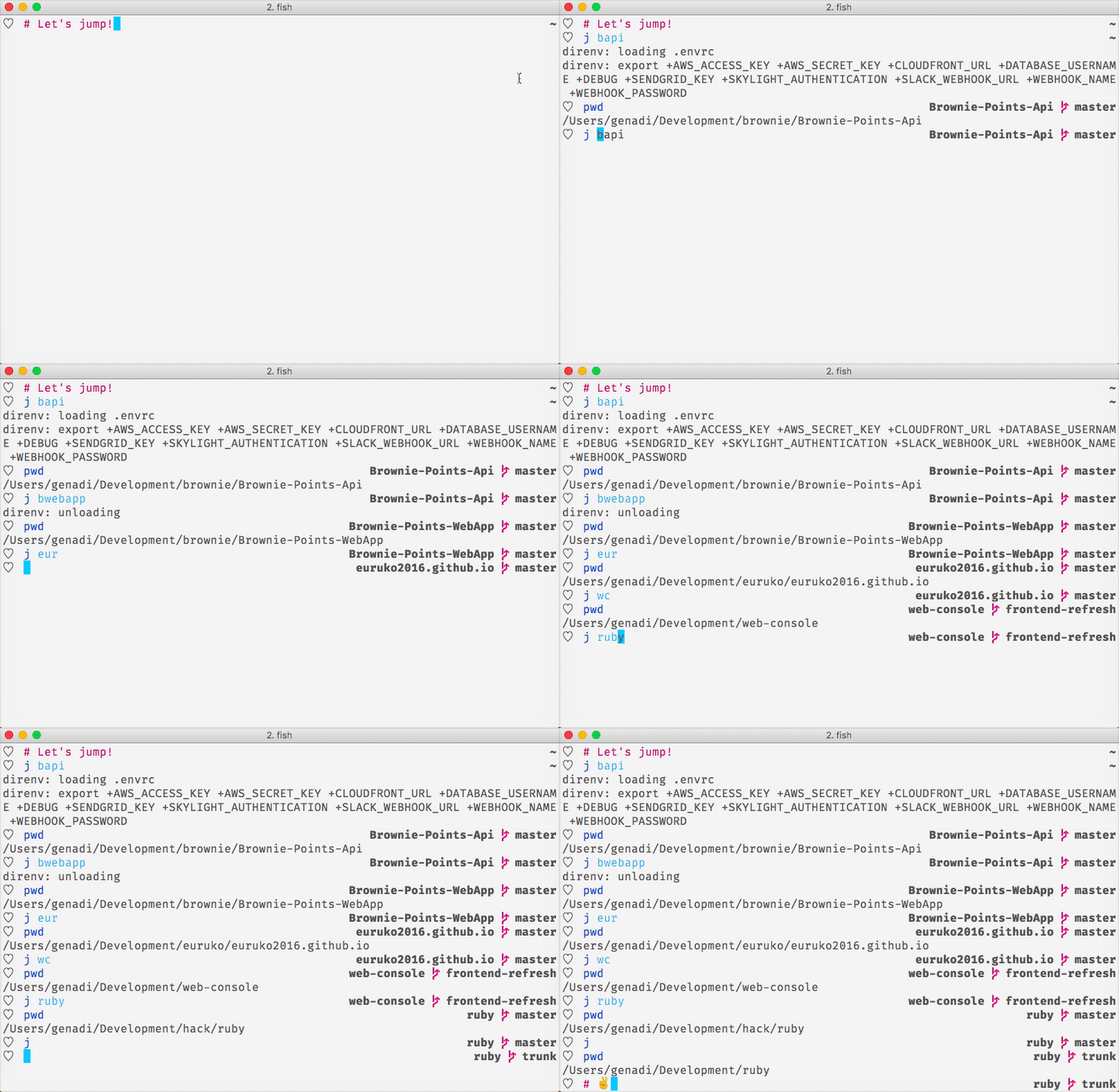
Integration
Jump needs to be integrated with the shell. For bash and zsh, the the line
below in needs to be in ~/.bashrc, ~/bash_profile or ~/.zshrc:
eval "$(jump shell)"
For fish shell, put the line below needs to be in ~/.config/fish/config.fish:
status --is-interactive; and . (jump shell | psub)
Once integrated, jump will automatically directory changes and start building an internal database.
But j is not my favourite letter!

This is fine, you can bind jump to z, with this:
eval "$(jump shell --bind=z)"
And now, you can use jump like z dir and it would just work! This is only
an example, you can bind it to anything. If you are one of those persons that
likes to type a lot with their fingers, you can do:
eval "$(jump shell --bind=goto)"
Voila! goto dir becomes a thing. The possibilities are endless!
Usage
Once integrated, jump introduces the j helper. It accepts only search terms and as a design goal there are no arguments to j. Whatever you give it, it's treated as search term.
Jump uses fuzzy matching to find the desired directory to jump to. This means that your search terms are patterns that match the desired directory approximately rather than exactly. Typing 2 to 5 consecutive characters of the directory name is all that jump needs to find it.
Regular jump
The default search behavior of jump is to fuzzy match the directory name of a score. The match is case insenstive.
If you visit the directory /Users/genadi/Development/rails/web-console often,
you can jump to it by:
$ j wc      # or...
$ j webc    # or...
$ j console # or...
$ j b-c     # or...
Using jump is all about saving key strokes. However, if you made the effort to type a directory base name exactly, jump will try to find the exact match, rather than fuzzy search.
$ j web-console
$ pwd
/Users/genadi/Development/rails/web-console
Deep jump
Given the following directories:
/Users/genadi/Development/society/website
/Users/genadi/Development/chaos/website
Typing j site matches only the base names of the directories. The base name
of /Users/genadi/Development/society/website is website, the same as the
other absolute path above. The jump above will land on the most scrored path,
which is the society one, however what if we wanted to land on the chaos
website?
$ j ch site
$ pwd
/Users/genadi/Development/chaos/website
This instructs jump to look for a site match inside that is preceded by a
ch match in the parent directory. The search is normalized only on the last
two parts of the target paths. This will ensure a better match, because of the
shorter path to fuzzy match on.
There are no depth limitations though and a jump to
/Users/genadi/Development/society/website can look like:
$ j dev soc web
$ pwd
/Users/genadi/Development/society/website
In fact, every space passed to j is converted to an OS separator. The last
search term can be expressed as:
$ j dev/soc/web
$ pwd
/Users/genadi/Development/society/website
Reverse jump
Bad jumps happen. Somethimes we're looking for a directory the isn't the most scored one at the moment. Imagine the following jump database:
/Users/genadi/Development/society/website
/Users/genadi/Development/chaos/website
/Users/genadi/Development/hack/website
Typing j web would lead to:
$ j web
$ pwd
/Users/genadi/Development/society/website
If we didn't expect this result, instead of another search term, typing j without any arguments will instruct jump to go the second best match.
$ j
$ pwd
/Users/genadi/Development/chaos/website
Case sensitive jump
To trigger a case-sensitive search, use a term that has a capital letter.
$ j Dev
$ pwd
/Users/genadi/Development
The jump will resolve to /Users/genadi/Development even if there is
/Users/genadi/Development/dev-tools that scores better.
Installation
Jump comes in packages for macOS through homebrew and linux.
macOS
brew install jump
Ubuntu/Debian
wget https://github.com/gsamokovarov/jump/releases/download/v0.20.0/jump_0.20.0_amd64.deb
sudo dpkg -i jump_0.20.0_amd64.deb
Red Hat/Fedora
wget https://github.com/gsamokovarov/jump/releases/download/v0.20.0/jump-0.20.0-1.x86_64.rpm
sudo rpm -i jump-0.20.0-1.x86_64.rpm
Go
If you have the Go toolchain installed, you can install it through:
go get github.com/gsamokovarov/jump
You can also build jump by yourself. Or hack on it, you know, if you like Go and UNIX stuff. 💻
Build

 Documentation

Documentation


There is no documentation for this package.
 Source Files
 Directories